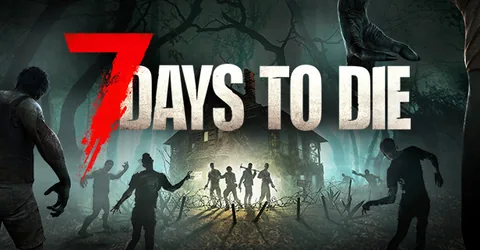
7 Days to Die is a slow build to a loud finish. For six days your group scavenges, loots and fortifies; on the seventh night the horde arrives, and the server has to simulate every zombie, every block they break and every trap you set off at the same moment. A server that coped on day one can struggle on day 100, once the world is full of player bases and broken terrain. This guide covers how much memory 7 Days to Die needs, how its config and mods work, and the habits that keep a long save playable, then shows how to launch a server on GGHOST Cloud.
How a 7 Days to Die dedicated server works
The 7 Days to Die dedicated server is a separate program from the game, installed through SteamCMD. It generates or loads a world, simulates zombies, animals and every block in the world, and saves the result to its Saves folder. Settings live in serverconfig.xml in the server’s root folder.
Two things make it heavier than it first looks:
- The world degrades. Every block that is mined, broken or built is stored. A long save, chewed up by players and hordes, is far heavier than a fresh map.
- Horde nights are the real load test. Lots of zombies pathing towards players and breaking blocks at once is the moment your server either holds up or stutters.
How much RAM does a 7 Days to Die server need?
These are the figures we size 7 Days to Die servers at:
- Up to 8 players: 8 GB. A group of friends on a normal world.
- 8 to 16 players: 12 GB. A bigger group, or a large overhaul mod.
World size matters too: larger generated worlds take longer to generate and more memory to hold. Overhaul mods such as Darkness Falls and Undead Legacy add a lot of content, so size up one tier if you run one. If memory sits above about 80% during a horde night, it is time to move up.
On GGHOST Cloud you pay for memory, not player slots.
ServerMaxPlayerCountis a setting you choose, not a line on the invoice.
Vanilla and overhaul mods
We support Vanilla, Darkness Falls and Undead Legacy.
Vanilla
The game as The Fun Pimps ship it. Choose it for the standard experience, the latest version, and the easiest time for players joining.
Darkness Falls and Undead Legacy
These are total overhaul mods. They change items, crafting, enemies and progression so heavily that they feel like a different game, which is why long-time players love them. Three rules apply:
- Match the game version. Overhaul mods are built for specific game versions and often lag behind new releases. Check which version the mod supports, then set your server to that version in the panel.
- Start a fresh save. An overhaul changes blocks and items, so it cannot load an existing vanilla world.
- Turn off Easy Anti-Cheat. Mods that ship custom code need
EACEnabledset tofalseon the server, and every player has to launch the game with EAC off as well.
Smaller mods that only change XML files can be uploaded into the Mods folder over SFTP or the file manager, and many of them need nothing installed on players’ machines.
Settings that matter
Edit serverconfig.xml from the panel’s file manager, then restart. Some values, such as the server name, password and player cap, may also be set as startup settings in the panel, and those take precedence over the file.
The properties you will most often change:
ServerNameandServerPassword: the name in the browser and the join password.ServerMaxPlayerCount: the player cap.GameWorld,WorldGenSeedandWorldGenSize: which world to use, or the seed and size for a randomly generated one.GameName: the name of the save. Changing it starts a new save rather than overwriting the old one.MaxSpawnedZombies: the server-wide cap on living zombies. Lowering it is one of the most effective ways to ease load on a busy server.EACEnabled: leave it on unless a mod requires it off.
Sandbox Options and SandboxCode
On recent versions, many gameplay settings (difficulty, blood moon count, day length and loot settings among them) are no longer separate lines in serverconfig.xml. They are set in the game’s Sandbox Options menu, which produces a code that you paste into the SandboxCode property. If you follow an older guide and add a removed property, the server ignores it without warning. Always check which properties your version’s file actually contains.
Performance tips for long saves
- Keep horde sizes realistic. Larger hordes are fun until the server cannot keep up. Raise them a step at a time and watch performance on the next blood moon.
- Restart before horde night. A scheduled restart a little before the seventh night starts the hardest part of the cycle on a fresh process.
- Pick a sensible world size. Huge generated worlds take longer to generate and hold more in memory for small groups who will never explore them all.
- Watch the console. Errors from a mod or a broken prefab show up there first.
Admins and permissions
Admin permissions are kept in serveradmin.xml, whose name is set by AdminFileName. It sits in the save folder, not the server root. Add players by their platform ID with a permission level, and use the in-game console for admin commands once you are listed.
Backups and saves
Your world and player data live in the Saves folder, or wherever SaveGameFolder points if you changed it. On GGHOST Cloud, backups run on a schedule you set and restore from the panel without a ticket. A daily backup plus a manual one before every game update or mod change is a good routine, especially because new major versions often need a fresh world.
Launching your 7 Days to Die server on GGHOST Cloud
- Pick a plan on the 7 Days to Die page: choose memory from the sizing above and the region closest to your players. Singapore and Europe (France–Germany border) are live today, with the United States (East, Central and West), the United Kingdom, India, Japan and Australia available on demand.
- Check out. Where a node in your region has room the server is created within seconds; in regions where we add capacity for you it is usually ready within 2 hours (24 hours at most).
- Set your options in the panel: server name, password, player cap, world and game version. Start the server and let it generate the world on first boot.
- Share the address. The address and port are shown in the panel. Players can connect by IP from the game’s server browser.
You get our Pterodactyl panel: live console, file manager, SFTP, scheduled tasks for restarts and announcements, sub-users and database access. Every node is behind DDoS protection from our network providers, on every plan. There is no setup fee and no contract, and support comes from the people who run the servers, on Discord or at hello@gghost.cloud.
The short version
Start at 8 GB for a small group and 12 GB for a bigger one or an overhaul mod. Match the game version to your mods, set gameplay rules through Sandbox Options on recent versions, keep MaxSpawnedZombies and horde sizes realistic, restart before blood moons and back up before every update. That keeps day 100 as playable as day one.