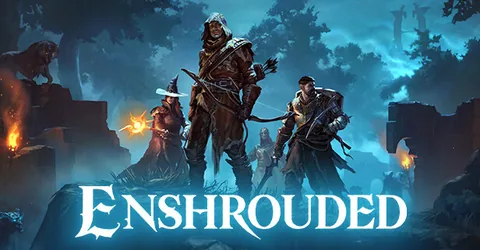
Enshrouded is a co-op survival game built around a fully destructible voxel world: you can dig, flatten and reshape terrain, and build almost anywhere. A dedicated server lets your group keep that world running between sessions, so anyone can log in and carry on building without waiting for the host. Getting it right comes down to the config file, user group passwords and a sensible difficulty, plus backups that keep your bases safe. This guide covers all of it, then shows how to launch a server on GGHOST Cloud.
How an Enshrouded dedicated server works
The Enshrouded dedicated server is a separate program from the game, installed through SteamCMD. Keen Games ships it for Windows only, so on Linux machines it runs under Wine or Proton. It loads one world, keeps track of every change players make to the terrain and every piece they build, and saves it to the folder set by saveDirectory, which is ./savegame by default.
Everything is configured in a single file, enshrouded_server.json, in the server’s root folder. It is created the first time the server starts. Stop the server before editing it, because the server can write its settings back when it shuts down and overwrite your changes.
How much RAM does an Enshrouded server need?
We do not publish fixed tiers for Enshrouded, because memory use depends on how your world is played. The main drivers are:
- How much of the world has been changed. Every dug tunnel, flattened hill and placed block is a change the server stores. A world with months of terraforming and large builds is heavier than a fresh one.
- Player count. More players exploring different parts of the map at once means more of the world loaded at the same time.
- Running under Wine or Proton. Because the server is a Windows program, the compatibility layer adds overhead on top of the game’s own use.
Tell us how many players you expect and how you plan to play, and we will size it with you. After that, the memory graph in the panel is your guide: if it sits above about 80% at peak, size up.
On GGHOST Cloud you pay for memory, not player slots.
slotCountis a setting you choose, not a line on the invoice.
Understanding enshrouded_server.json
The top-level keys you will use most:
name: the server name shown in the browser.slotCount: the player limit, up to 16.saveDirectoryandlogDirectory: where the world and logs are written. Leave them at the defaults unless you have a reason to move them.gameSettingsPreset: the difficulty preset:Default,Relaxed,Hard,SurvivalorCustom.gameSettings: your own difficulty values, read only when the preset isCustom.userGroups: permission groups, each with its own join password.bannedAccounts: players who are not allowed to join.
Because it is JSON, a missing comma or bracket can stop the file being read. Edit carefully, and keep a copy of the working version before you change anything.
User groups: passwords instead of admin lists
Enshrouded does not use a list of admin IDs. Instead, each entry in userGroups has a name, a password and a set of permissions, and players get the permissions of whichever password they join with. The permissions include:
canKickBan: kick and ban other players.canAccessInventories: open chests and storage that others have built.canEditBase: build and remove within existing base areas.canExtendBase: expand base areas outward.reservedSlots: keep slots free for this group when the server is full.
A typical setup is an admin group with every permission and a password only you know, a friends group that can build but not kick, and a guest group that can visit without touching anyone’s base. Older configs used a single top-level password key; if the game finds one, it creates a group called default from it. Move to proper user groups so you can control who can do what.
Difficulty and custom settings
The presets are a good starting point. Relaxed suits groups who want to explore and build, Survival suits groups who want a harder game. For anything in between, set gameSettingsPreset to Custom and add only the values you want to change to gameSettings, such as player health and stamina factors, enemy health and damage factors, resource yield and experience factors.
Two details catch people out:
- Custom values are ignored unless the preset is
Custom. - Day and night durations are in nanoseconds, not seconds. Thirty minutes is
1800000000000. Get the number of zeros wrong and the day will be very short or very long.
Performance tips that help
- Restart on a schedule. A daily restart from the panel scheduler, with an announcement before it, keeps a long-running world fresh.
- Restart after every config change. Settings load at start-up only.
- Keep the slot count realistic. Sixteen players spread across the map load far more of the world than a group playing together.
- Keep the server on the same version as your players. After a game update, players on the new version usually cannot join a server still running the old one, so update the server promptly.
Mods and custom files
We do not pre-install any mod framework for Enshrouded. You can still upload your own files, such as an existing save, over SFTP or the file manager.
Backups and saves
Your world is in the savegame folder. On GGHOST Cloud, backups run on a schedule you set and restore from the panel without a ticket. Take a daily backup plus a manual one before every game update and before big config changes. To move an existing world onto the server, stop it, upload the save files into the save folder and start it again.
Launching your Enshrouded server on GGHOST Cloud
- Pick a plan on the Enshrouded page: choose memory and the region closest to your players. Singapore and Europe (France–Germany border) are live today, with the United States (East, Central and West), the United Kingdom, India, Japan and Australia available on demand. If you are unsure how much memory you need, ask us and we will size it with you.
- Check out. Where a node in your region has room the server is created within seconds; in regions where we add capacity for you it is usually ready within 2 hours (24 hours at most).
- Set your options in the panel: server name, slot count and user group passwords, then start the server and adjust the difficulty in
enshrouded_server.jsonif you want something other than the default. - Share the address and password. The address and port are shown in the panel. Give each player the password for the group they should join.
You get our Pterodactyl panel: live console, file manager, SFTP, scheduled tasks for restarts and announcements, sub-users and database access. Every node is behind DDoS protection from our network providers, on every plan. There is no setup fee and no contract, and support comes from the people who run the servers, on Discord or at hello@gghost.cloud.
The short version
Stop the server before editing enshrouded_server.json, use user groups so admins, friends and guests each get the right permissions, set the preset to Custom before adding your own values, remember that durations are in nanoseconds, and back up before every update. Memory depends on how much your world changes, so start with a conversation and size up when the graph tells you to.