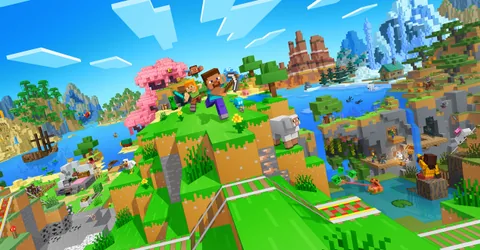
Minecraft is still the most popular game people host for themselves, and for good reason: a small private world for friends costs less per month than a takeaway, and a well-run public server can grow into a community of hundreds. The difference between a server that feels instant and one that stutters is rarely the hardware alone. It comes down to three choices: how much memory you give it, which server software you run, and a handful of settings. This guide walks through all three, then shows how to get a server online on GGHOST Cloud in a few minutes.
Java Edition: what you are actually hosting
A Minecraft server is a single Java program that simulates the world for everyone connected to it. It loads the chunks around each player, runs mobs, redstone and farms, and saves the world to disk. Almost all of that work happens on one main thread, which is why a fast CPU core matters more than a large number of cores, and why a server can lag while memory is half empty.
On GGHOST Cloud we host Java Edition, on every release from 1.7.10 to 1.21.x, so you can run the latest version or an older one that a modpack or minigame depends on. You pick the version as a startup setting in the panel.
How much RAM does a Minecraft server need?
Memory decides how many chunks, entities and mods the server can hold before Java’s garbage collector starts working overtime. These are the figures we size real servers at:
- Up to 10 players, Vanilla or a few plugins: 2 GB. A private survival world for friends runs happily here.
- 10 to 40 players, Paper with plugins or a small modpack: 4 to 8 GB. This is where most community servers live.
- 40+ players or a large modpack: 8 to 16 GB. Big modpacks want memory, not player slots.
Two things push these numbers up over time: world size (every explored chunk is more to save and load) and mods. A 10-player modpack can need more RAM than a 50-player vanilla server. If your memory graph sits above about 80% at peak, size up; if it never passes half, you can size down.
On GGHOST Cloud you pay for memory, not player slots.
max-playersis a setting you choose, not a line on the invoice.
Vanilla, Paper or Forge: picking your server software
The server software (“server type”) is the biggest decision after RAM, because it decides what you can add later.
Vanilla
Mojang’s own server, exactly as the game ships. Choose it for a pure survival world with no additions, or for a brand-new snapshot before other software catches up. It has no plugin support, and it is the least optimised of the three.
Paper (our recommendation for most servers)
Paper is a high-performance fork of Spigot. It runs the same world, but with many optimisations to chunk loading, entities and redstone, plus a large set of performance settings you can tune. It also runs Bukkit and Spigot plugins: permissions, land claims, economies, anti-cheat, minigames and almost anything a public server needs. If you are unsure, start on Paper.
Forge
Forge is the mod loader most big modpacks are built on. Choose it when you want to run a modpack such as Vault Hunters 3, Create: Above and Beyond, RLCraft or Pixelmon Reforged. Every player needs the same pack installed on their client. On GGHOST Cloud you upload the pack’s server files over SFTP or the file manager and run them on the Forge server type.
We also offer Sponge (a plugin platform used by some Forge servers) and BungeeCord, a proxy that links several servers into one network with a shared lobby. Other mod loaders are not available yet.
Settings that make the biggest difference
All of these live in server.properties, which you can edit straight from the panel’s file manager. Restart the server after changing them.
view-distance: how many chunks around each player the server sends. The default of 10 is generous; 6 to 8 is a good balance for busy servers and barely noticeable to players.simulation-distance: how far from players mobs, crops and redstone keep running. Lowering it to 5 or 6 is one of the most effective ways to cut lag on a crowded server.max-players: set it to what your memory and CPU can comfortably serve, not the highest number possible.white-listandonline-mode: for a private server, turn the whitelist on and add your friends with/whitelist add <name>. Keeponline-mode=trueso only genuine accounts can join.
On Paper, three more habits pay off:
- Pre-generate the world with a plugin such as Chunky before players arrive. Generating new terrain is the most expensive thing a server does; doing it in advance removes most of the lag spikes on a new map.
- Profile instead of guessing. The spark plugin shows exactly which plugin, entity or chunk is eating server time, so you fix the real cause.
- Keep farms in check. Huge mob farms and item piles are the most common source of lag on long-running survival worlds. Paper’s entity and item-merge settings help, and so does a friendly rule for players.
Plugins and mods: installing them safely
With Paper, plugins are .jar files that go into the plugins folder. With Forge, mods go into the mods folder. Upload them through the panel’s file manager or over SFTP, restart, and check the console for errors. Two rules save a lot of grief:
- Match the version. A plugin or mod built for a different Minecraft version is the most common reason a server won’t start.
- Back up before big changes. Take a backup from the panel before adding a large plugin, updating the game version or switching modpack, so you can roll back in one click.
Backups and keeping your world safe
A world you have played for months is irreplaceable. On GGHOST Cloud, backups run on a schedule you set and restore from the panel without opening a ticket. A good routine is a daily backup, plus a manual one before any update. If you are moving from another host, upload your existing world, plugins and configs over SFTP and you are back online on the same save.
Launching your Minecraft server on GGHOST Cloud
- Pick a plan. Choose the memory from the sizing above and the region closest to your players. Plans start at a small 2 GB server for friends and go up to 16 GB for large modded worlds.
- Check out. Where a node in your region has room, the server is created within seconds; in regions where we add capacity for you, it is usually ready within 2 hours.
- Choose your version and server type in the panel, start the server, and accept the Minecraft EULA if the panel asks.
- Share the address. It is shown at the top of the panel. Players add it under Multiplayer → Add Server and join.
From there you have the full Pterodactyl panel: a live console, file manager, SFTP, scheduled tasks for restarts and announcements, sub-users for your moderators, and a database if a plugin needs one. Every node is protected against DDoS attacks, and you can change version, server type or plan as your community grows.
The short version
Start on Paper with 2 to 4 GB for a small group, lower view and simulation distance before you buy more RAM, pre-generate your map, and back up before every big change. That combination keeps the vast majority of Minecraft servers smooth, and when you outgrow it, moving to a bigger plan is a quick upgrade rather than a migration.