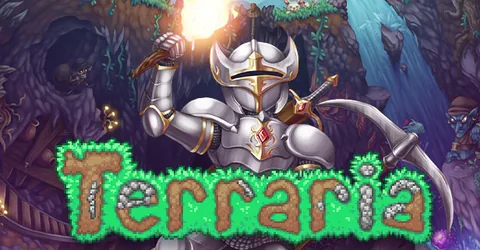
Terraria is one of the easiest games to host and one of the most rewarding. A small world shared with friends turns a single-player adventure into a group project, and a dedicated server means anyone can log in to dig, build or fight a boss without the host’s PC being on. The main choice is not hardware but which server build you run, because that decides whether you get plain Terraria, admin tools and plugins, or full content mods. This guide covers all three, the settings worth knowing, and how to get a server running on GGHOST Cloud.
What you are hosting
A Terraria server runs one world for everyone connected. It loads the world file (a .wld file), simulates the enemies, NPCs, liquids and events, and saves the world back to disk. Terraria worlds are small next to most survival games, and the server is light, which is why it is the lightest thing we host.
You can run three builds on GGHOST Cloud: Vanilla, TShock and tModLoader. You choose the build and game version in the panel, and you can change it later and restart.
How much RAM does a Terraria server need?
Terraria needs little memory compared with other games. This is the figure we size servers at:
- Up to 16 players: 2 GB. More for large tModLoader packs.
Vanilla and TShock servers rarely come near that limit with a normal group. tModLoader is different: every content mod adds items, enemies, bosses and world generation, and a large pack can use several times what a vanilla world does. If you plan a big modpack, tell us the mod list and we size it to match.
On GGHOST Cloud you pay for memory, not player slots.
maxplayersis a setting you choose, not a line on the invoice.
Vanilla, TShock or tModLoader
Vanilla
The official dedicated server, exactly as the game ships. It is the simplest option and every player can join with the normal game. It has no plugins, no permission system and only basic console commands, which is fine for a small group of friends who trust each other.
TShock (our pick for public and community servers)
TShock is a server build that adds admin tools on top of vanilla Terraria. Players still join with the normal game, so nobody needs to install anything, but you get:
- User accounts and groups, so you can give moderators some commands and not others.
- Region protection, so a griefer cannot dig up the spawn area or someone’s base.
- Bans, kicks and anti-cheat checks.
- Plugins for things like warps, homes and server-side characters.
On first start, TShock prints a one-time setup code in the console and saves it to setup-code.txt in the tshock folder. Join the server and type /setup with that code to claim admin, then create your real admin account. TShock’s own settings live in tshock/config.json.
tModLoader
tModLoader is the mod loader for Terraria’s content mods: Calamity, Thorium and the many smaller mods built around them. Choose it when your group wants new bosses, items and classes. Every player needs tModLoader and the same mods to join. Mods go in the server’s Mods folder, and the ones to load are listed in enabled.json in the same folder. You can upload mod files through the panel’s file manager or over SFTP.
TShock and tModLoader are separate builds, so a server runs one or the other, not both.
Settings in serverconfig.txt
The vanilla and tModLoader servers read their settings from serverconfig.txt, which you can edit in the panel’s file manager. The keys you will use most:
world: the world file to load when the server starts.autocreate: creates a new world if none is found.1is small,2medium and3large.worldnameandseed: the name and seed for a new world.difficulty: for a new world,0is Normal,1Expert,2Master and3Journey.maxplayers: the player limit.password: a join password for a private group.motd: the message players see when they join.secure: turns on extra cheat protection.npcstream: reduces enemies appearing to skip around, at the cost of a little more bandwidth.
Restart the server after changing the file.
Console commands
The panel’s live console accepts the vanilla server commands without a leading slash:
savesaves the world now.exitsaves and shuts down;exit-nosaveshuts down without saving.kick <name>andban <name>deal with problem players.say <message>sends a message to everyone.playinglists who is online.
Keeping things running well
- Pick the world size on purpose. A large world takes longer to generate and save, and there is more of it to travel. For a small group, medium is plenty.
- Save before boss fights and events. Typing
savebefore a risky fight costs nothing and gives you a recent point to go back to. - Use TShock regions on public servers. Protecting spawn and builds before you open the server saves a lot of clean-up later.
- Match versions. After a Terraria update, the server and players must be on the same version. On tModLoader, mods also need to support that version.
Backups and saves
Your world is a single .wld file, which makes it easy to back up and move. On GGHOST Cloud, backups run on a schedule you set and restore from the panel without opening a ticket. A daily backup plus a manual one before updates and new mods covers most problems, including the occasional world that a buggy mod damages.
To bring an existing world from your own PC or another host, upload the .wld file over SFTP or the file manager, point world at it, and restart. Your world comes back as it was, chests and all.
Getting a Terraria server on GGHOST Cloud
Terraria is set up on request, not through checkout yet.
- Ask us. Message us on Discord (or open a ticket) with the build, mods and player count you need, and the region closest to your group. Singapore and Europe (France–Germany border) are live today; the United States (East, Central and West), the United Kingdom, India, Japan and Australia are available on demand.
- We size it and quote. We recommend the memory for your build and mods and quote a monthly price. There is no setup fee and no contract, and billing is at app.gghost.cloud.
- We set it up. We build the server on our Pterodactyl panel, usually within a few days, on Vanilla, TShock or tModLoader.
- Share the address. The address and port are shown in the panel. Players choose Multiplayer → Join via IP, enter them, and join.
From there you have the full panel at panel.gghost.cloud: a live console, file manager, SFTP, scheduled tasks for restarts and announcements, sub-users for your moderators, and database access. Every node is behind DDoS protection from our network providers, on every plan, and support comes from the people who run the servers, on Discord and at hello@gghost.cloud.
The short version
2 GB runs a normal Terraria group comfortably. Choose Vanilla for a few friends, TShock for a public or community server with admin tools, and tModLoader for content mods, with more memory for big packs. Set the basics in serverconfig.txt, keep server and players on the same version, and back up before updates. Terraria rewards a simple setup.