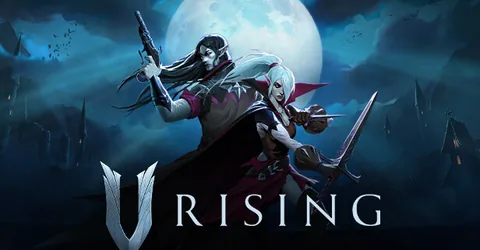
V Rising puts your group in charge of a castle in a world full of things that want you dead, sunlight included. On a dedicated server, castles keep standing when everyone logs off, clans can raid each other on a schedule, and the world carries on between sessions. Running one well comes down to getting the two settings files right, choosing PvP or PvE rules that suit your players, and keeping saves safe. This guide covers each, then shows how to get a server online on GGHOST Cloud.
How a V Rising dedicated server works
The V Rising dedicated server is a separate program from the game, installed through SteamCMD. Stunlock Studios ships the server for Windows only, so on Linux machines it runs under Wine. It loads one world, simulates every castle, servant and enemy in it, and writes the world to a save in its Saves folder.
Settings are split across two files:
ServerHostSettings.json: the server itself. Name, description, password, player limit, save name, autosave behaviour and server list visibility.ServerGameSettings.json: the rules of the game. PvP or PvE, clan size, castle raiding windows, resource and crafting rates.
There is one important detail about where these files live. Default copies sit in VRisingServer_Data/StreamingAssets/Settings, but you should not edit those; they are templates and are replaced on updates. The server reads your own copies from the Settings folder under its persistent data path. Edit those, with the server stopped, and restart for the changes to take effect.
How much RAM does a V Rising server need?
We do not publish fixed tiers for V Rising, because memory use depends heavily on how your server is played. The main drivers are:
- Player count. More players means more castles, more servants and more combat happening at once.
- Castles and servants. Every castle and every servant working inside it is part of the world the server keeps in memory. Long-running servers with many large castles are heavier than fresh ones.
- Running under Wine. Because the server is a Windows program, the compatibility layer adds overhead on top of the game’s own use.
- Mods. Community mods add to memory use, some more than others.
Tell us your expected player count and how you plan to run the server, and we will size it with you. Afterwards, watch the memory graph in the panel: if it sits above about 80% at peak, size up.
On GGHOST Cloud you pay for memory, not player slots.
MaxConnectedUsersis a setting you choose, not a line on the invoice.
Settings worth changing
In ServerHostSettings.json
Name,DescriptionandPassword: what players see and what they need to join. Leave the password empty for a public server.MaxConnectedUsersandMaxConnectedAdmins: the player limit, plus extra slots reserved for admins.SaveName: the name of the save to load or create. Changing it starts a fresh world.AutoSaveCountandAutoSaveInterval: how many autosaves to keep and how often to make them.ListOnSteamandListOnEOS: whether the server appears in the in-game server list.GameSettingsPresetandGameDifficultyPreset: load a ready-made rule set, such as a standard PvP preset, and a difficulty (Difficulty_Easy,Difficulty_NormalorDifficulty_Brutal).
In ServerGameSettings.json
If you want something other than a preset, this is where you set the rules. The two settings that shape a server more than any other are GameModeType, which sets PvP or PvE, and ClanSize, the maximum number of players in a clan. Below those you will find castle damage rules and raid windows, plus multipliers for resources, crafting and blood drain.
A preset set in ServerHostSettings.json overrides what is in this file, so choose one approach. Use a preset for a quick start, or leave GameSettingsPreset empty and write your own rules.
PvP or PvE: choosing your rules
- PvE suits groups of friends who want to explore, build and fight bosses together without losing a castle overnight.
- PvP suits communities who enjoy raiding. Set raid windows to times when most players are online, so nobody wakes up to a castle that fell at 4 in the morning with no chance to defend it.
- Clan size decides how big groups can get. Small clan limits keep PvP fair on a mid-sized server.
Whatever you choose, write it in the server description. Players pick V Rising servers by their rules first.
Admins and bans
Admins are listed in adminlist.txt in the Settings folder, one SteamID per line. It takes effect without a restart. In game, the player turns on the console in the options menu, opens it and runs adminauth. Bans made in game are written to banlist.txt in the same folder, which you can edit from the panel’s file manager.
Mods: what to expect
V Rising mods are community-made, mostly built on BepInEx, and you can upload files over SFTP or the file manager. Be aware that game updates often break them until their authors catch up, and some need installing on players’ machines as well. Take a backup before adding any mod.
Backups and saves
Your world lives in the Saves folder under the persistent data path, alongside the autosaves V Rising keeps itself. Those autosaves are useful but sit on the same server. On GGHOST Cloud, backups run on a schedule you set and restore from the panel without a ticket. Take a manual backup before every game update and before changing your rules mid-season.
Launching your V Rising server on GGHOST Cloud
- Pick a plan on the V Rising page: choose memory and the region closest to your players. Singapore and Europe (France–Germany border) are live today, with the United States (East, Central and West), the United Kingdom, India, Japan and Australia available on demand. If you are not sure how much memory you need, ask us and we will size it with you.
- Check out. Where a node in your region has room the server is created within seconds; in regions where we add capacity for you it is usually ready within 2 hours (24 hours at most).
- Set your options in the panel: server name, password, player limit and preset, or your own settings files. Then start the server.
- Share the address. The address and port are shown in the panel. Players can find the server in the in-game list or connect directly by address.
You get our Pterodactyl panel: live console, file manager, SFTP, scheduled tasks for restarts and announcements, sub-users and database access. Every node is behind DDoS protection from our network providers, on every plan. There is no setup fee and no contract, and support comes from the people who run the servers, on Discord or at hello@gghost.cloud.
The short version
Edit the settings in the persistent data Settings folder, never the defaults. Pick PvP or PvE and a sensible clan size, use a preset or your own rules but not both, set raid windows your players can defend, add admins through adminlist.txt, and back up before every update. Memory depends on how your server is played, so start with a conversation and size up when the graph says so.