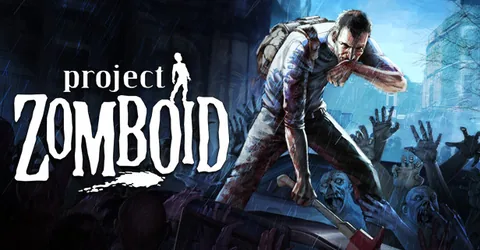
Project Zomboid looks like a small game, but a multiplayer world is a lot of state to keep track of. Every house your group has looted, every car you have moved, every barricade and every zombie that has wandered into town is saved and reloaded. A dedicated server keeps that world running for everyone, so your group can log in at different times and pick up where the last person left off. This guide covers what drives a Zomboid server’s memory, how mods are added, the settings worth changing first, and how to get one running on GGHOST Cloud.
What you are hosting
The Project Zomboid dedicated server is a Java program that runs the same simulation as the game, without the graphics. It loads the map cells around each connected player, runs the zombies and the loot, and writes the world to disk as it goes. Each server has a name (the default is servertest), and that name decides which files it reads: the main settings file servertest.ini, the sandbox rules in servertest_SandboxVars.lua, and the matching save folder.
The game also has more than one development branch. Build 41 and Build 42 are separate, and the server and every player must be on the same branch. Mods are often built for one branch and not the other, so decide the branch first and choose mods to match. On GGHOST Cloud you can change the game version or branch as a startup setting in the panel and restart.
How much RAM does a Project Zomboid server need?
Zomboid keeps loaded chunks in memory, and the loaded area grows as your group spreads out across the map. It is more memory-hungry than its pixel art suggests. These are the figures we size servers at:
- Up to 8 players: 4 GB. A group of friends on one save, vanilla or lightly modded.
- 8 to 32 players: 8 GB. Modded groups want the headroom.
Three things push memory up over time: how spread out your players are (a group living in one town loads far less than eight people in eight towns), mods (map mods and large item packs in particular) and the age of the save. If your memory graph sits near the top at peak, size up before it starts causing lag and long saves.
On GGHOST Cloud you pay for memory, not player slots.
MaxPlayersis a setting you choose, not a line on the invoice.
Vanilla or modded
Vanilla
A vanilla server is the game exactly as it ships. It is the easiest to keep running, every player can join without downloading anything, and game updates rarely break it. If your group is new to multiplayer, start here and add mods once the world feels stable.
Steam Workshop mods
Most long-running Zomboid servers are modded. The server downloads Workshop mods itself when it starts, so you do not need to upload mod files by hand. Each mod needs two entries in your server’s .ini file:
WorkshopItems=takes the numeric Workshop ID, the number in the mod’s Steam Workshop URL.Mods=takes the Mod ID, the text name the game uses to load it. You find it on the mod’s Workshop page.
Both lists are separated by semicolons. One Workshop item can contain several Mod IDs, so the two lists do not always have the same length. Map mods need a third entry: the map folder name goes into Map=, ahead of the vanilla map, which stays last in the list.
Settings worth changing first
Zomboid splits its settings into two files, and you can edit both in the panel’s file manager. Stop the server before editing and start it again afterwards.
The .ini file covers how the server behaves:
PublicNameandPublic: the name in the server browser, and whether the server is listed there at all.Password: a join password for a private group.Open: withOpen=trueanyone can create an account; withOpen=falsethe whitelist is on and only accounts you have created can join.MaxPlayers: set it to what your memory comfortably serves, not the highest number possible.PVP: whether players can hurt each other.
The SandboxVars.lua file covers the world itself: zombie population, loot rarity, how soon water and power shut off, and how fast time passes. These are the same options as a single-player sandbox game. Changing some of them on an existing save only affects areas that have not been loaded yet, so settle the important ones before your group spreads out.
Admin basics
Commands typed into the panel’s live console run as the server. A few you will use often:
adduser "name" "password"creates an account, which you need on a whitelisted server.setaccesslevel "name" admingives a player admin rights in game.savewrites the world to disk now.quitsaves and shuts the server down cleanly.
Keeping a busy server smooth
- Restart on a schedule. A long-running Zomboid world benefits from a regular restart. Use the panel’s scheduled tasks to send a warning, then restart at a quiet hour.
- Add mods a few at a time. If the server stops starting after a big batch, you will not know which one did it. Two or three at a time, with a restart and a check of the console in between, finds the problem in minutes.
- Watch for mod updates. When a Workshop mod updates, players with the new version and a server with the old one will not match. A scheduled restart lets the server fetch the update.
- Keep the group close at first. Early on, a group that sticks to one or two towns keeps the loaded area, and the memory, down.
Backups and saves
A Zomboid world is months of looting and building, and one bad mod update can corrupt it. On GGHOST Cloud, backups run on a schedule you set and restore from the panel without opening a ticket. Take a daily backup, plus a manual one before changing the game branch or adding a big mod.
The world itself lives in the server’s save folder, named after the server, alongside the .ini and SandboxVars.lua files. If you are moving an existing world from another host or from your own PC, upload the save folder and both settings files over SFTP, keep the same server name, and the server loads your world as it was.
Getting a Project Zomboid server on GGHOST Cloud
Project Zomboid is set up on request, not through checkout yet.
- Ask us. Message us on Discord (or open a ticket) with the build, mods and player count you need, and the region closest to your group. Singapore and Europe (France–Germany border) are live today; the United States (East, Central and West), the United Kingdom, India, Japan and Australia are available on demand.
- We size it and quote. We work out the memory from your player count and mod list, and quote a monthly price. There is no setup fee and no contract, and billing is at app.gghost.cloud.
- We set it up. We build the server on our Pterodactyl panel, usually within a few days, with your branch and mods in place.
- Share the address. The address and port are shown in the panel. Players add it under the multiplayer menu and join.
From there you have the full panel at panel.gghost.cloud: a live console, file manager, SFTP, scheduled tasks for restarts and announcements, sub-users for your admins, and database access if you need it. Every node is behind DDoS protection from our network providers, on every plan, and support comes from the people who run the servers, on Discord and at hello@gghost.cloud.
The short version
Pick your branch first and choose mods to match it. Start with 4 GB for a small group and 8 GB for a larger or modded one. Add mods by Workshop ID and Mod ID, a few at a time. Turn on the whitelist for a private group, restart on a schedule, and back up before every big change. That keeps a Zomboid world healthy for as long as your group survives in it.